
HTMLを Portable Text に変換する
ここでは Wordpress のコンテンツエリアで管理をしている RichText のデータを Portable Text 形式に変換して、Sanity のコンテンツとして利用するための手順をまとめています。
公式のドキュメントは以下のサイトで参照できます。
HTML を Portable Text に変換する
Wordpress で管理している HTML ではブロックという考え方があり、そのデータの処理をする必要があります。手順としては、以下の手続きを実施する形です。
- HTMLの文字列を取得する
- ポータブルテキストに変換する
- figure タグが見つかった場合、そのURLをexternalImageブロックに格納する
- その後、スロットリングされた非同期関数の配列内で、その画像のファイル名に基づいてWP REST APIを検索する
- 見つかった場合、メモリ内キャッシュ内の既存の画像を使用するか、画像をアップロードする
- 空のブロックを削除します
- Portable Text を返す
API を利用できる場合は公式のスクリプトを参照してください。ここでは、export をした XML ファイルのアセット情報を参照する形の実装を紹介していきます。
URL から ID を取得する
Wordpress のコンテンツから URL を取得した際に、そのアセットを判別するために URL から ID を取得して処理を進める必要があります。そこで、 migrations/import-wp/lib/wpImageFetchXML.ts のファイルに以下のコードを追加してください。
// Get WordPress post ID by image URL
export async function getPostIdByImageUrl(imageUrl: string): Promise<number | null> {
  const xmlFilePath = path.resolve(__dirname, './WordPress.assets.xml')

  // Read the XML file
  const xmlData = fs.readFileSync(xmlFilePath, 'utf-8')

  // Parse the XML data
  const parsedXml = await parseStringPromise(xmlData)

  // Get the items from the parsed XML
  const items = parsedXml.rss.channel[0].item || []
  for (const item of items) {
    // Check both guid and attachment_url for matching image URL
    const guidUrl = item['guid']?.[0]?._
    const attachmentUrl = item['wp:attachment_url']?.[0]

    if (guidUrl === imageUrl || attachmentUrl === imageUrl) {
      const postId = item['wp:post_id']?.[0]
      return postId ? parseInt(postId, 10) : null
    }
  }

  return null
}
上記のコードで、画像の URL から Post ID を取得することができます。
スキーマの更新
今回利用するスクリプトを実行するにあたって、若干のスキーマが不足しているためエラーが発生します。sanityImageHotspot と sanityImageCrop です。 schemaTypes/index.ts のファイルにスキーマの定義を追加します。追加後のファイルは以下の通りです。
import {authorType} from './authorType'
import {categoryType} from './categoryType'
import {externalImageType} from './externalImageType'
import {pageType} from './pageType'
import {postType} from './postType'
import {tagType} from './tagType'
import {portableTextType} from './portableTextType'
import { SchemaTypeDefinition } from 'sanity'

// Import built-in Sanity image types that are required for the image type
const sanityImageHotspot: SchemaTypeDefinition = {
  name: 'sanity.imageHotspot',
  title: 'Image Hotspot',
  type: 'object',
  fields: [
    {name: 'x', type: 'number'},
    {name: 'y', type: 'number'},
    {name: 'height', type: 'number'},
    {name: 'width', type: 'number'},
  ],
}

const sanityImageCrop: SchemaTypeDefinition = {
  name: 'sanity.imageCrop',
  title: 'Image Crop',
  type: 'object',
  fields: [
    {name: 'top', type: 'number'},
    {name: 'bottom', type: 'number'},
    {name: 'left', type: 'number'},
    {name: 'right', type: 'number'},
  ],
}
export const schemaTypes = [
  authorType,
  categoryType,
  pageType,
  postType,
  tagType,
  externalImageType,
  portableTextType,
  sanityImageHotspot,
  sanityImageCrop,
]
HTML の取得
HTML のデータを取得するためのスクリプトを ./migrations/import-wp/lib/htmlToBlockContent.ts のファイルとして以下のコードを追加します。このコードは XML からファイルを読み込んでアップロードする形に書き換えられているため、公式のコードと異なります。動作確認をした時の console.log のコードもコメントアウトしてあります。
import {htmlToBlocks} from '@portabletext/block-tools'
import {Schema} from '@sanity/schema'
import {uuid} from '@sanity/uuid'
import {JSDOM} from 'jsdom'
import pLimit from 'p-limit'
import type {FieldDefinition, SanityClient} from 'sanity'

import type {Post} from '../../../sanity.types'
import {schemaTypes} from '../../../schemaTypes'
// import {BASE_URL} from '../constants'
import {sanityIdToImageReference} from './sanityIdToImageReference'
import {sanityUploadFromUrl} from './sanityUploadFromUrl'
// import {wpImageFetch} from './wpImageFetch'
import { getPostIdByImageUrl, wpImageFetchXML } from './wpImageFetchXML'

const defaultSchema = Schema.compile({types: schemaTypes})
const blockContentSchema = defaultSchema
  .get('post')
  .fields.find((field: FieldDefinition) => field.name === 'content').type

// https://github.com/portabletext/editor/tree/main/packages/block-tools
export async function htmlToBlockContent(
  html: string,
  client: SanityClient,
  imageCache: Record<number, string>,
): Promise<Post['content']> {
  // Convert HTML to Sanity's Portable Text
  let blocks = htmlToBlocks(html, blockContentSchema, {
    parseHtml: (html) => new JSDOM(html).window.document,
    rules: [
      {
        deserialize(node, next, block) {
          const el = node as HTMLElement

          if (node.nodeName.toLowerCase() === 'figure') {
            const url = el.querySelector('img')?.getAttribute('src')

            if (!url) {
              return undefined
            }

            return block({
              // these attributes may be overwritten by the image upload below
              _type: 'externalImage',
              url,
            })
          }

          return undefined
        },
      },
    ],
  })

  // Note: Multiple documents may be running this same function concurrently
  const limit = pLimit(2)

  const blocksWithUploads = blocks.map((block) =>
    limit(async () => {
      if (block._type !== 'externalImage' || !('url' in block)) {
        return block
      }

      // The filename is usually stored as the "slug" in WordPress media documents
      // Filename may be appended with dimensions like "-1024x683", remove with regex
      const imageUrl = (block.url as string).replace(/-\d+x\d+(?=\.\w+$)/, '').replace(/\?w.*$/, '')
      const imageId = await getPostIdByImageUrl(imageUrl)

      // console.log('block.url as string:', imageUrl)

      if (typeof imageId !== 'number' || !imageId) {
        return block
      }

      if (imageCache[imageId]) {
        // console.log('Using cached image for ID:', imageId)
        return {
          _key: block._key,
          ...sanityIdToImageReference(imageCache[imageId]),
        } as Extract<Post['content'], {_type: 'image'}>
      }

      // console.log('imageId:', imageId)

      const imageMetadata = await wpImageFetchXML(imageId)
      if (imageMetadata?.source?.url) {
        const imageDocument = await sanityUploadFromUrl(
          imageMetadata.source.url,
          client,
          imageMetadata,
        )
        if (imageDocument) {
          // Add to in-memory cache if re-used in other documents
          imageCache[imageId] = imageDocument._id

          return {
            _key: block._key,
            ...sanityIdToImageReference(imageCache[imageId]),
          } as Extract<Post['content'], {_type: 'image'}>
        } else {
          return block
        }
      }

      return block
    }),
  )

  blocks = await Promise.all(blocksWithUploads)

  // Eliminate empty blocks
  blocks = blocks.filter((block) => {
    if (!block) {
      return false
    } else if (!('children' in block)) {
      return true
    }

    return block.children.map((c) => (c.text as string).trim()).join('').length > 0
  })

  blocks = blocks.map((block) => (block._key ? block : {...block, _key: uuid()}))

  // TS complains there's no _key in these blocks, but this is corrected in the map above
  // @ts-expect-error
  return blocks
}
上記のコードでは、パッケージが不足しているため、以下のコマンドを実行してパッケージを追加します。
npm i --save-dev @types/jsdomPost の Content に反映させる
取得したデータを wpDoc.content として処理をするために、./migrations/import-wp/lib/transformToPost.ts を以下のように更新します。
import {htmlToBlockContent} from './htmlToBlockContent'

// add following code
  if (wpDoc.content) {
    doc.content = await htmlToBlockContent(wpDoc.content.rendered, client, existingImages)
  }

// add code before return
  return doc
}
データを反映させる
これで HTML のデータを Content に入れる準備ができました。以下のコマンドを実行してください。
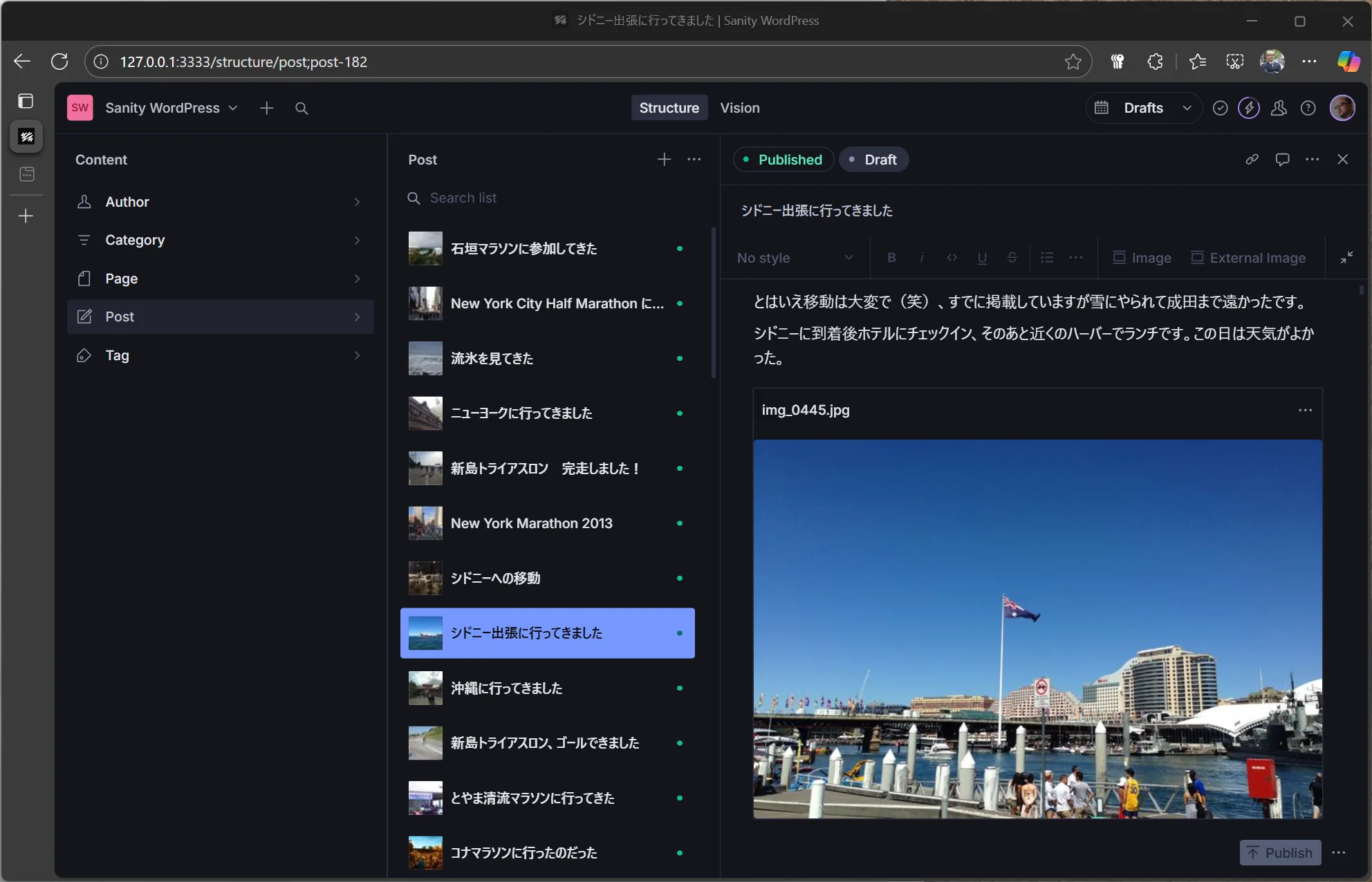
npx sanity@latest migration run import-wp --no-dry-run --type=posts結果を確認すると、Wordpress から画像を取得して、コンテンツの中に画像が含まれるように更新されました。
WordPressブロックをポータブルテキストに変換する
この記事に関しては、手持ちで持っているブログでは Wordpress のブロックを利用していないため、検証は省略します。最初に記載していますが、以下のページが公式の手続きになります。
カラムブロックについて
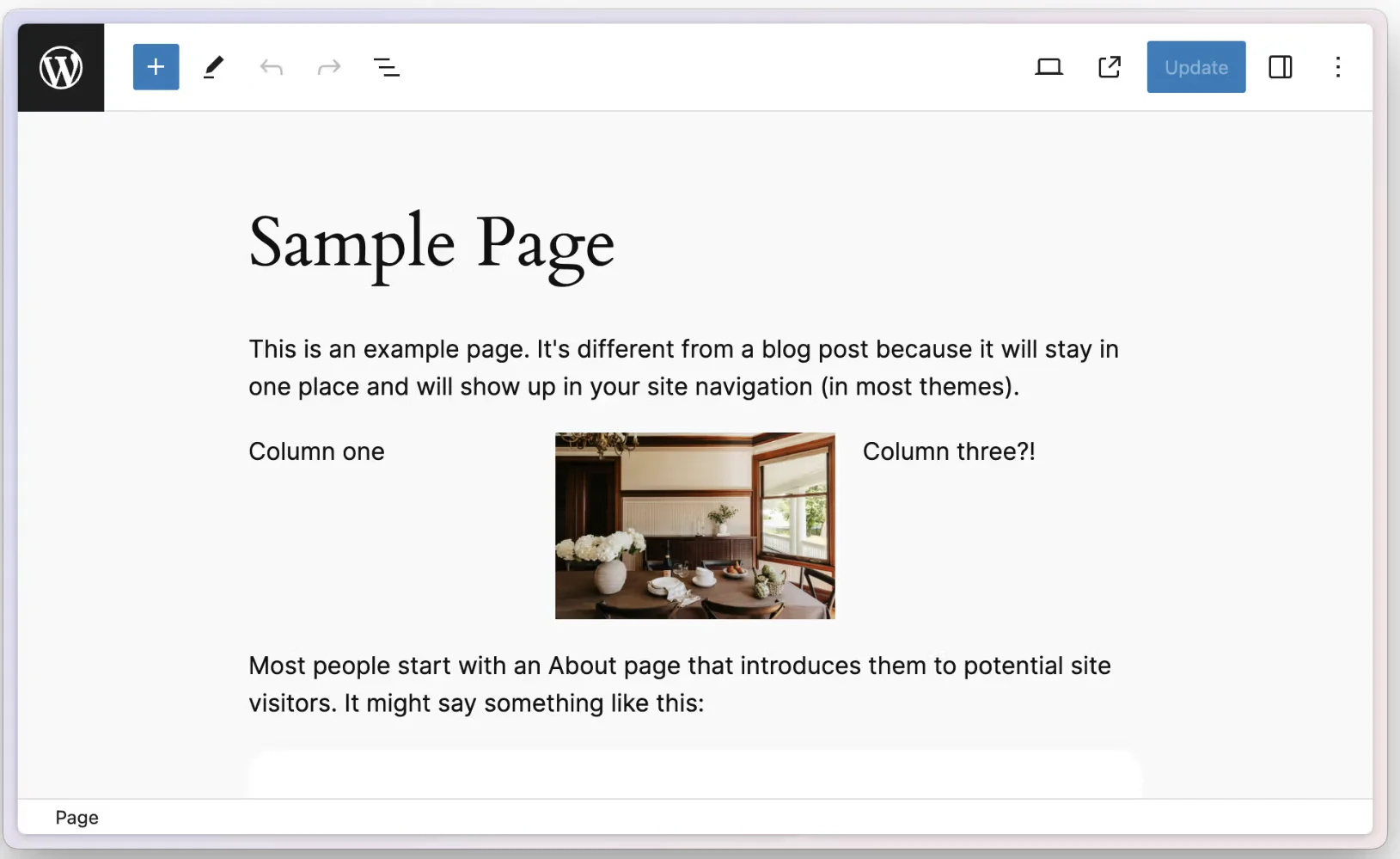
Wordpress のブロックにはカラムブロックというのがあります。ページの中で複数の行を用意して、それぞれにコンテンツを配置するという形です。これを利用することで、左側に画像、右側にリッチテキストといった使い方が可能となります。これはリッチテキストで実現しているものではないため、カラムブロックのデータを何らかの処理をする必要があります。
上記の記事では、カラムブロックのデータを受け入れることができるカスタムのタイプを追加して、Portable Text でデータを利用することが可能にするための手順を紹介しています。
またこれらのデータを取得するためのシリアライズの手順、マイグレーションスクリプトのアップデート手順が記載されています。仕上がりは以下のような形となります。
カスタムのコンテンツタイプに関しては、後日いくつかのサンプルを共有しますので、今回はマイグレーションが目的で、手順に関して理解してもらうためにこの部分は紹介しました。
まとめ
ブログの投稿に関して、一通り移行することができました。HTML のデータと画像を移行しただけのため、例えばサイト内リンクとかは URL が変わらなければもちろんそのまま機能しますが、自動的にリンクを張るなどの拡張をしたいところです。その部分はまた後日紹介する予定です。
ここまでのコードは以下のリポジトリのブランチで公開しています。
それでは最後に、Posts ではなく Page のデータの移行を実行しましょう。